
When I decided to install the DaVinci Resolve video editor on my Framework laptop (running Omarchy btw), little did I know that I was about to embark on a journey full of obscure errors and edge cases. Apparently running it on Linux, while technically possible, is often so hard that it has almost become a meme at this point. I was, however, dead set on not giving up, and after a lot of tweaking with some help from Claude Code, I eventually got everything working as expected!
I’m posting what I did here to save others from going through the same headaches as I did.
TLDR: Use davincibox to run DaVinci Resolve in a containerised Fedora instance. Use ROCm and override the GPU environment variable so that it thinks that you have an AMD Radeon RX 7900 (gfx1100).
1. Install container dependencies
First we download all the packages that our Fedora containerisation will use.
sudo pacman -S podman distrobox lshw crun2. Change user permissions
DaVinci Resolve needs additional user permissions to access the GPU’s rendering capabilities.
sudo usermod -aG render,video $USERLog out and back in for the changes to take effect (or restart your computer). You can verify that the permissions are set correctly by running the following command:
groups
# > 'render' and 'video' should show up in the output!
3. Download DaVinci Resolve
Get the installer from the official website (yes, you will need to fill in a registration form, but it’s fairly quick). You’ll get a zip containing a .run file.
4. Set up davincibox
DaVinci Resolve’s Linux installer is built specifically for RHEL-compatible distros - Blackmagic doesn’t officially support Arch Linux. To work around this, we use davincibox.
Clone the davincibox source code and move the .run file from the previous step into the same
directory so that we can run the setup script:
git clone https://github.com/zelikos/davincibox.git
cd davincibox
./setup.sh DaVinci_Resolve_*.run
5. Install ROCm
Without access to your GPU, DaVinci Resolve would be far too slow even for basic video editing. ROCm provides GPU acceleration for AMD graphics cards, so we install it inside the container:
distrobox enter davincibox -- /bin/bash

# once you're in the container, run:
> sudo dnf install rocm-opencl
> exit
6. Override the GPU version
If you have a Framework with an AMD chip, you will most likely see this error if you try to open the app:
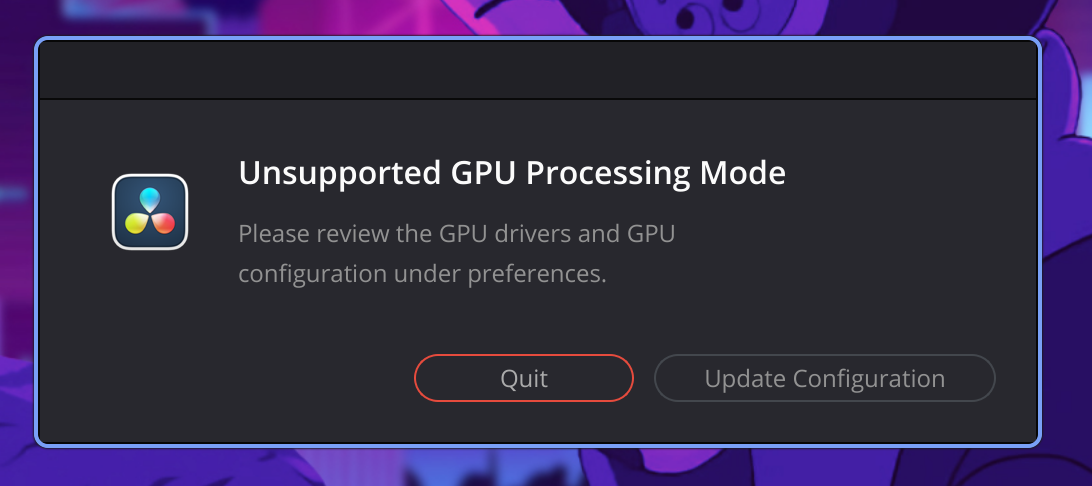
My Framework 13 has a Radeon 840M (gfx1152), which isn’t officially supported. However, you can still make it work if you trick ROCm into thinking that you have a Radeon RX 7900 (gfx1100).
To do this, edit the file ~/.local/share/applications/DaVinciResolve.desktop in your favourite text editor and change the Exec line to:
Exec=distrobox-enter -n davincibox -- env HSA_OVERRIDE_GFX_VERSION=11.0.0 /usr/bin/run-davinci /opt/resolve/bin/resolve %u7. Fix the scaled-down UI
DaVinci Resolve should now technically open without any errors, but you’ll notice when you launch it that the UI will be almost unusably small.
To fix this, navigate through the small UI and create a dummy project - this will reveal the menu bar for the app.
In the upper-left corner, click “DaVinci Resolve” -> “Preferences”. Then click the “User” tab, go to “UI Settings” and set the “UI Display Scale” to 200%.
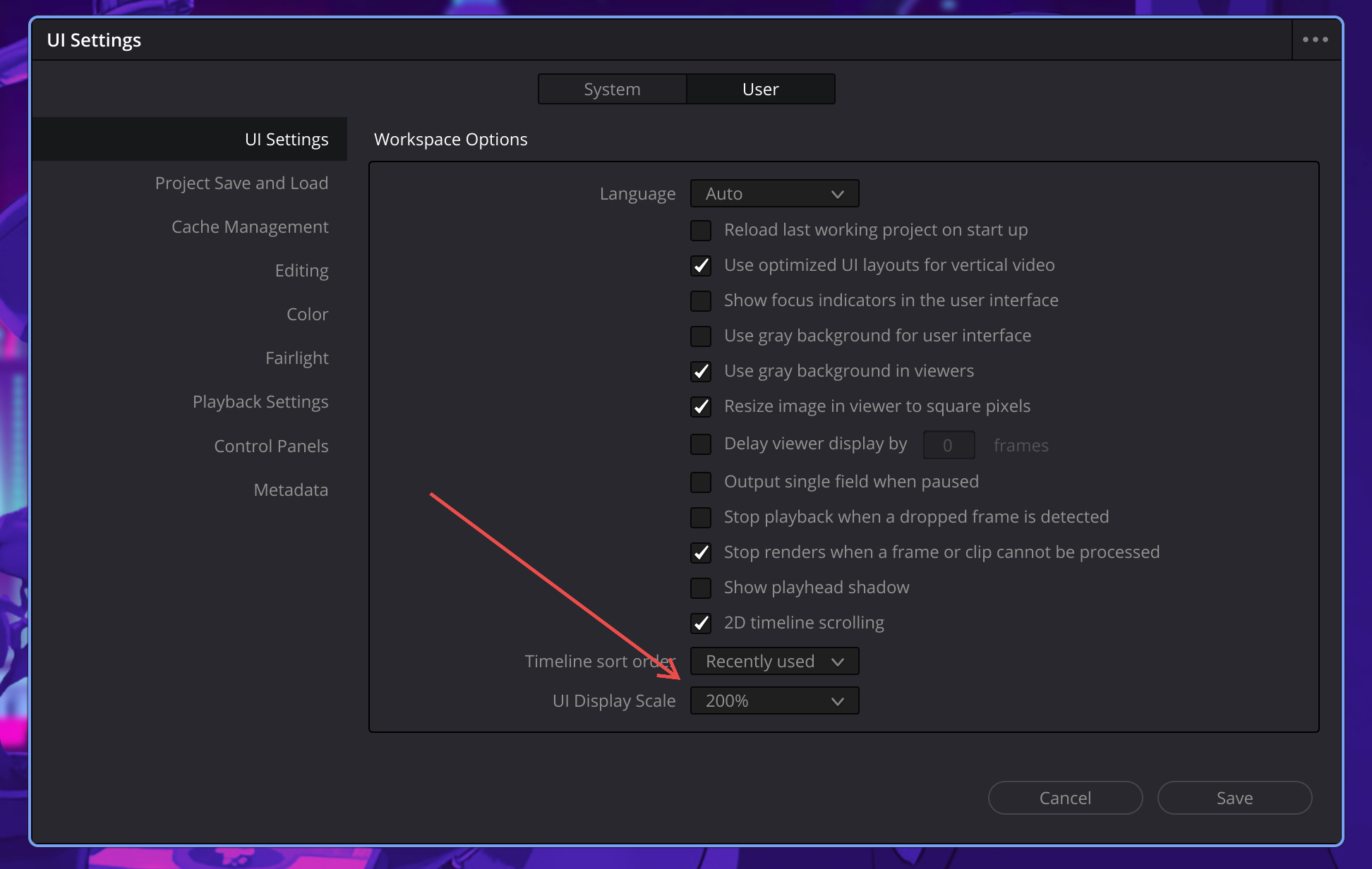
Save and restart the app.
Congratulations, you are now ready to edit videos on your Framework laptop! 🎉
Some final notes:
- The free version of DaVinci Resolve on Linux doesn’t support H.264/H.265 videos (for weird licensing reasons). You’ll need to convert H.264/H.265 videos to MJPEG or DNxHR encoding before importing them:
ffmpeg -i input.mp4 -c:v mjpeg -q:v 3 -c:a pcm_s16le output.mov- The Radeon 840M has limited compute units, so this setup is best suited for lightweight video editing only. If timeline playback seems slow, right-click clips -> “Generate Optimized Media” or enable Playback -> “Proxy Mode”.